How Background Removal Without Uploading Photos Works
Learn how local browser background removal separates runtime and model downloads from image uploads, how to check network traffic in DevTools, and what local mode does not guarantee.

Quick answer
Browser-based local background removal processes your image directly on your device—using browser technologies such as WebAssembly and, where supported, WebGPU—instead of sending your photo file to a remote server for subject detection. Your browser still makes normal network requests to load the web page, scripts, and model files, while an optional cloud mode (when available and selected) sends the image to an external service.
On this page

Key takeaways
- Model downloads are not photo uploads: Opening a local browser tool still fetches HTML, JavaScript, and AI model weights from a server to your device, even when your photo itself stays in local browser memory.
- You can check network behavior yourself: A desktop browser's Network panel shows whether clicking remove triggers an outbound image upload or only local processing.
- Local processing is not the same as working offline: Fetching the page and uncached model files requires an internet connection, and other site requests (such as analytics or optional cloud modes) depend on the tool's design and privacy policy.
Runtime and model downloads versus image uploads
When people hear "no upload," it is easy to assume zero network traffic occurs. In reality, a local browser tool separates two completely different directions of network activity:
- Inbound page, runtime, and model requests (server → your browser): When you visit the site and start your first cutout, your browser downloads the page interface, processing runtime, and segmentation model files so your device has the software needed to isolate the subject.
- Outbound image transfers (your browser → a server): In a cloud background remover, your browser sends your photo's pixel data to a remote server, waits for the server to compute the mask, and downloads the finished cutout. In local mode, that image-upload step is skipped because inference runs inside your browser tab.
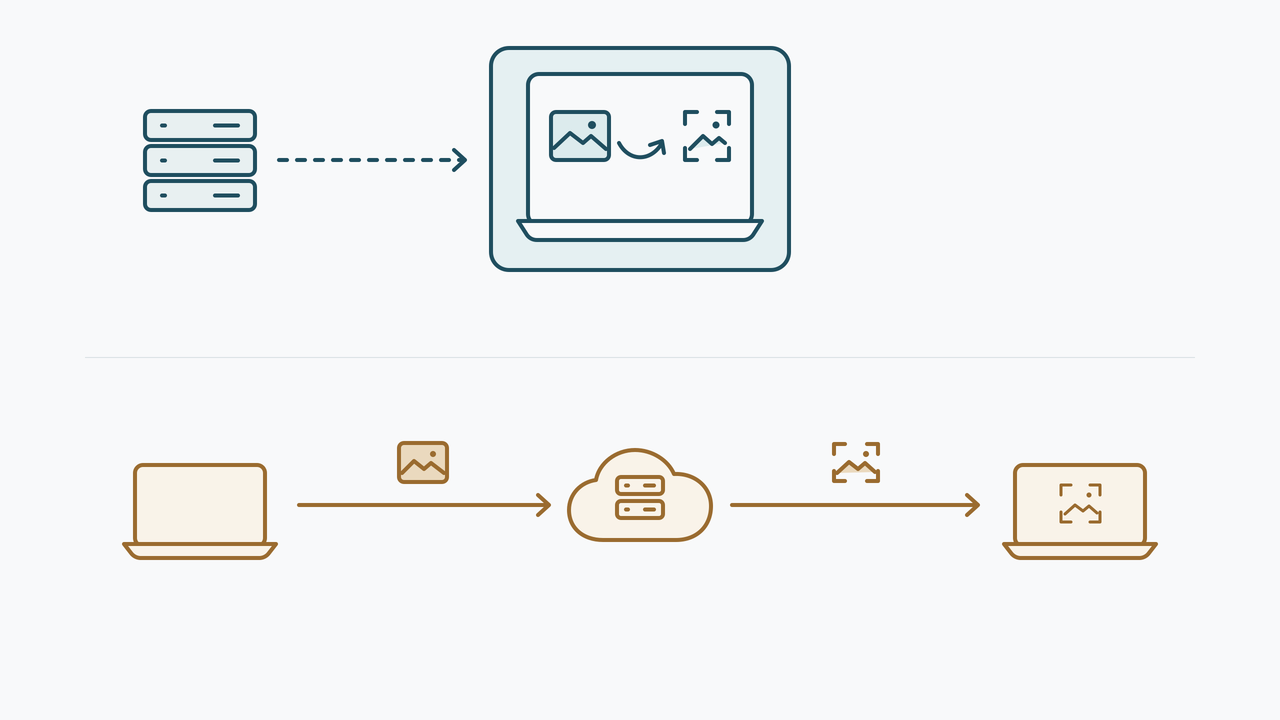
| Aspect | Local browser processing | Cloud / server processing |
|---|---|---|
| Where the cutout runs | Inside your browser tab on your device's CPU or GPU | On a remote server |
| Inbound network traffic | Web page assets, runtime code, and model files (often cached after first use) | Web page assets and the returned cutout image |
| Outbound photo transfer | Image pixels stay on your device during local inference | Image file is uploaded to an external service for processing |
| What limits speed | Your device's CPU/GPU, available RAM, browser support, and first-run model download | Upload/download bandwidth, file size, and remote server queue |
How browsers run background removal locally
Modern browsers can run segmentation models locally using two core web technologies:
- WebAssembly (Wasm): Allows compiled, high-performance code (written in languages such as C++ or Rust) to execute inside the browser's sandbox alongside JavaScript. Because WebAssembly is broadly supported across desktop and mobile browsers, it serves as the reliable CPU execution path.
- WebGPU: A newer browser API that gives web applications access to your device's GPU for general-purpose compute workloads. According to MDN Web Docs, WebGPU availability varies across browsers, operating systems, and graphics drivers—so local tools typically fall back to CPU/WebAssembly when WebGPU is unavailable.
Because your own hardware does the work, local runs inherit your device's limits: older laptops or phones with tighter tab memory can take longer on very large photos than a high-powered desktop, and the very first run usually includes a pause while model files download and initialize.
How to verify what a tool sends in your browser
You do not have to take any website's privacy headline on faith. On a desktop browser such as Chrome, you can inspect live traffic with the Chrome DevTools Network panel:
- Open the PhotoBGOff background remover (or any browser tool you want to test) in a desktop browser.
- Open DevTools and switch to the Network tab before selecting your photo. Per Chrome for Developers, requests are recorded automatically while the panel is open.
- Let the page finish loading, then click the Clear button in the Network panel so new requests stand out clearly.
- Add a test photo and run background removal in local mode.
- Inspect the Requests table and click any new entries to check their Headers and Payload tabs:
- Expected in local mode: You may see inbound
GETrequests fetching runtime scripts or model weight files on the first run (and normal site assets), without an outboundPOSTorPUTpayload containing your photo's filename or image bytes. - Expected in cloud mode: You will see an outbound upload request carrying your image payload to a remote endpoint, followed by a response returning the processed image or mask.
- Expected in local mode: You may see inbound
What local processing does and does not guarantee
Keeping image inference on your device reduces exposure compared to uploading photos to a third-party server, but it is important to be clear about its boundaries:
- It is not a blanket guarantee that no data leaves your device: Loading any web page involves standard HTTP requests (such as IP address and browser headers) to host servers or CDNs, and websites may use separate services described in their policies. Always review the PhotoBGOff privacy and processing disclosures before editing sensitive material.
- Optional cloud mode changes where the photo goes: When a tool offers an optional cloud mode and you choose it, your image is transmitted to an external service for processing.
- It does not automatically mean full offline support: Your browser needs an internet connection to load the page and fetch model files if they are not already cached. Whether a loaded tab continues working after disconnecting depends on browser cache behavior and the specific application—do not assume offline availability without testing it first.
Frequently asked questions
Why does a local background remover download a large file the first time I use it?
Instead of sending your photo to a remote model, the browser downloads the segmentation model weights to your device once so it can run inference locally. Later cutouts in the same browser can usually reuse the cached model until your browser clears its cache or you switch devices or private windows.
Is local browser processing always faster than cloud processing?
No. Local processing skips image upload and download time, which can feel fast on a modern computer once the model is cached. On older hardware, phones with limited memory, or during the first-run model download, a remote GPU server can finish sooner.
Does local processing automatically satisfy workplace or regulatory compliance rules?
No. Running inference in the browser keeps your image pixels out of an inference upload, but compliance depends on your organization's full policy—including browser security, CDN/model hosting, site analytics, and local file storage. Check your organization's guidelines and the site's privacy and processing disclosures before processing regulated records.