How to Make Product Photos White and Square
Turn a product photo into a pure white (#FFFFFF), 1:1 square catalog image, fix retained display blocks with edge touch-up, and verify pixel dimensions before uploading.

Quick answer
To make a product photo white and square for an online store, remove the original background, set the backdrop to pure white (#FFFFFF), frame the subject in a 1:1 square with even margins, and inspect the bottom edge for leftover props or stands before exporting. Always check the final file's pixel dimensions and corner color values before uploading to a marketplace.
On this page
Key takeaways
- Match pure white, not "almost white": Amazon Seller Central's product image guide requires a pure white background (
RGB 255, 255, 255) on main images, with the product filling 85% of the frame and at least 1,000 pixels on the longest side to enable zoom. - Size 1:1 squares for store grids: Shopify's product media guide notes that
2048 × 2048 pxusually displays best for square product images and recommends a consistent aspect ratio across collection pages. - Inspect the base of the product: Automatic cutouts often treat a display block, riser, or stand touching the product as part of the subject, so plan to check and erase it before exporting.
Choose a product photo that cuts out cleanly
A clean source photo gives you sharper edges and less manual cleanup. Before editing, pick a shot with these traits:
- Full product in frame: Keep every corner, cap, strap, or handle inside the image so nothing gets clipped when you center it in a square.
- Even lighting without harsh cast shadows: Soft window light separates the product's base from the table far more cleanly than direct overhead light.
- Clear contrast against the surface: Avoid shooting a white bottle on a white counter if you can; a contrasting surface helps the background remover find the true boundary.
If your photo already has a clean white background and you only want to fit it into a square canvas without cutting anything out, use our guide to make an image square without cropping instead.
Remove the background, set pure white, and frame 1:1
Open the PhotoBGOff background remover to isolate your product and place it on a pure white square canvas.
- Load your product photo: Select or drop the original image into the single-image editor.
- Run background removal: Let the editor separate the product from the tabletop and wall behind it.
- Select pure white (
#FFFFFF): Switch the background replacement option from transparent to solid pure white (#FFFFFF/RGB 255, 255, 255). - Set 1:1 square framing and margins: Choose a 1:1 square aspect ratio and center the product so it fills most of the frame without touching the edges. For Amazon main images, aim for the product to fill about 85% of the frame with balanced white space on all sides.
Review margins and remove retained display blocks
Pause before clicking export and inspect the preview at full size—especially along the bottom edge where the product sat on a surface.
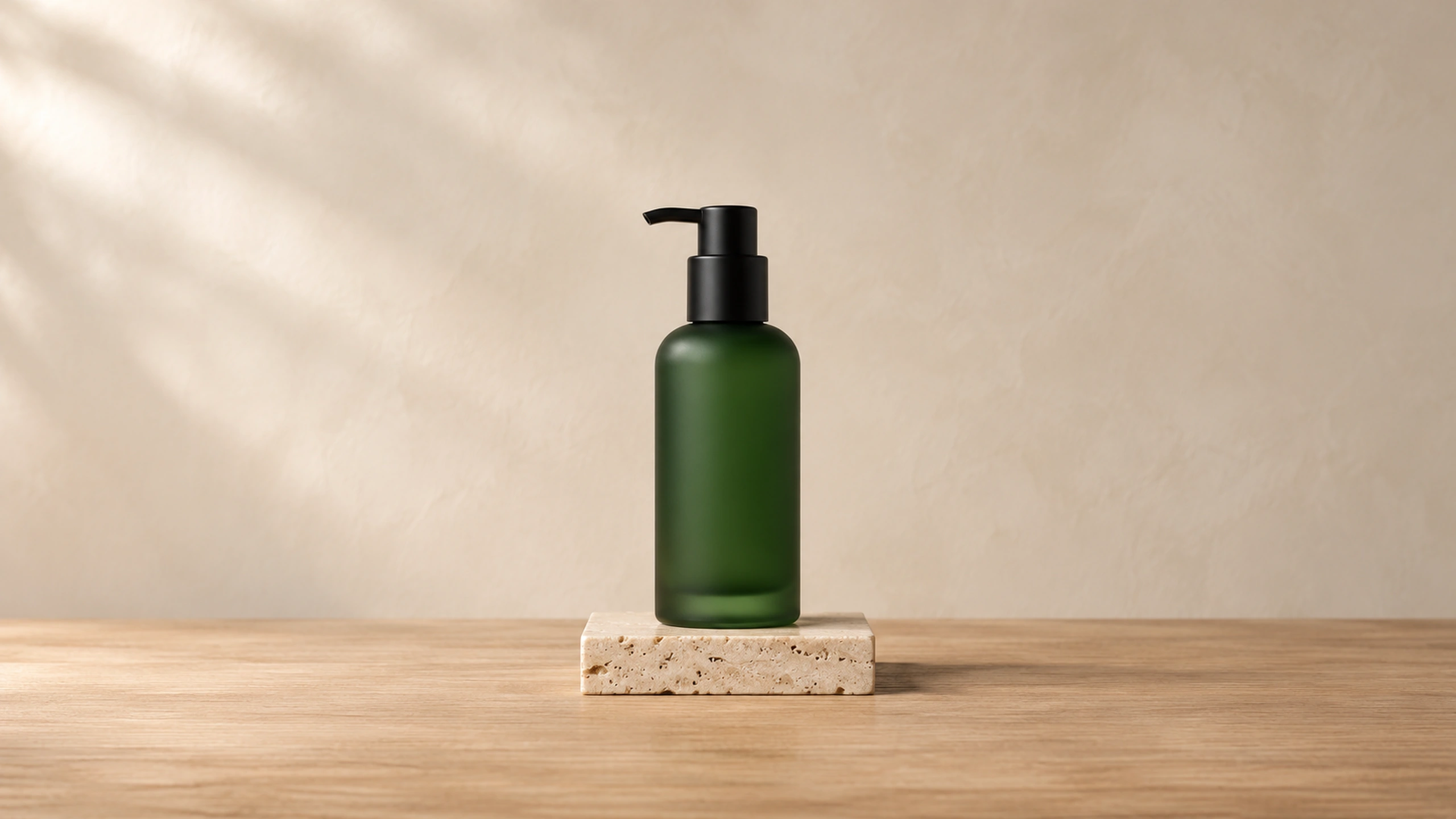
Automatic background removers frequently keep a small wooden block, acrylic riser, or shadow pedestal attached to the product because it sits directly underneath the item in sharp focus. Marketplaces such as Amazon prohibit non-included props or display stands in main listing images, and even on independent stores a leftover block makes a catalog grid look uneven.
- Zoom into the base and corners: Check where the product meets the former tabletop and look for any retained riser, stand, or dark shadow slab.
- Erase the leftover block: Open the editor's edge touch-up controls and brush out the retained display block along the product's true bottom edge.
- Check the outer silhouette: If a colored fringe remains around curved edges or fine details, clean it up using the steps in our guide to fix rough edges after removing a background.
- Re-check centering: Removing a tall display block changes the subject's height, so re-center the product inside the 1:1 square so top and bottom margins stay balanced.
Export and inspect dimensions and background color
Once the cutout and margins look clean, export the image and run a quick two-point inspection before uploading it to your store.
| Marketplace | Background requirement | Framing & size guideline | Format note |
|---|---|---|---|
| Amazon Seller Central (Main image) | Pure white (RGB 255, 255, 255) required |
Product fills 85% of frame; 500–10,000 px on longest side (1,000+ px recommended for zoom) |
JPEG recommended; PNG, TIFF, non-animated GIF accepted |
| Shopify | No mandatory color; consistent backdrop recommended | 2048 × 2048 px usually displays best for square product images (up to 5000 × 5000 px, under 20 MB) |
PNG or JPEG recommended; WebP and other formats also accepted |
How to verify your exported file:
- Check pixel dimensions: Open the file's properties or info panel on your computer to confirm the width and height match (1:1 square) and meet your store's zoom threshold (at least
1000 × 1000 px, or2048 × 2048 pxfor Shopify). - Sample the background color: Open the exported image in any editor with an eyedropper or color picker and sample the top-left and bottom-right corners. Both should read
#FFFFFF(RGB 255, 255, 255), not off-white gray like#F8F8F8.
Editing an entire product catalog
The single-image workflow is ideal for testing framing, checking margins, and fixing an item that sits on a display stand. Once you know the white fill and square dimensions your store needs, you do not have to repeat the same export settings one SKU at a time—follow our guide to remove backgrounds from multiple images and export a ZIP to process a whole batch consistently.
Frequently asked questions
Why does a white paper backdrop photograph gray instead of #FFFFFF?
Camera meters try to average bright scenes toward middle gray, so white paper or foam board under household lighting usually records as light gray (such as #E5E5E5) rather than pure #FFFFFF. Replacing the background digitally sets every corner pixel to exact RGB 255, 255, 255 without needing dedicated background strobes.
Should I save white-background product photos as JPEG or PNG?
Because a pure white product photo does not need transparency, JPEG is usually the practical default for fast-loading store pages—and Amazon recommends JPEG for product listings. Choose PNG if you want lossless quality for a master file or if your storefront (such as Shopify) automatically optimizes uploaded PNGs for shoppers.